AI image generation, made simple: Replicate and Nano Banana
Want AI images without a powerful GPU? Use Nano Banana for quick photo edits, Replicate to try many models in your browser, and a LoRA for a repeatable style.
You do not need a fancy graphics card or any setup to make AI images anymore. For quick edits to a photo, reach for Nano Banana. To try lots of styles and models from your browser, use Replicate. And if you want one specific look or character repeated again and again, you want a LoRA. That is the whole map, and the rest of this piece walks each path.
The good news for normal people is that all three run in the cloud. You type, you click, you get an image. No drivers, no installs, no melting laptop.
Which tool should you reach for?
Start from what you actually want to do, then follow the branch.
When do you want Nano Banana?
Nano Banana is the friendly nickname for Google’s Gemini image model (officially Gemini 2.5 Flash Image). It shines at quick edits: “remove the bin in the background”, “make it sunset”, “put my dog in a tiny hat”. Its real party trick is keeping a character or subject looking consistent across several images, which is hard for a lot of tools.
You can use it right inside the Gemini app, through the API, or via an aggregator. If you want the longer tour, I wrote a whole piece on what it does well, coming soon on this blog.
What does Nano Banana actually produce?
Three real runs, prompt included. Click any image to see it full size.
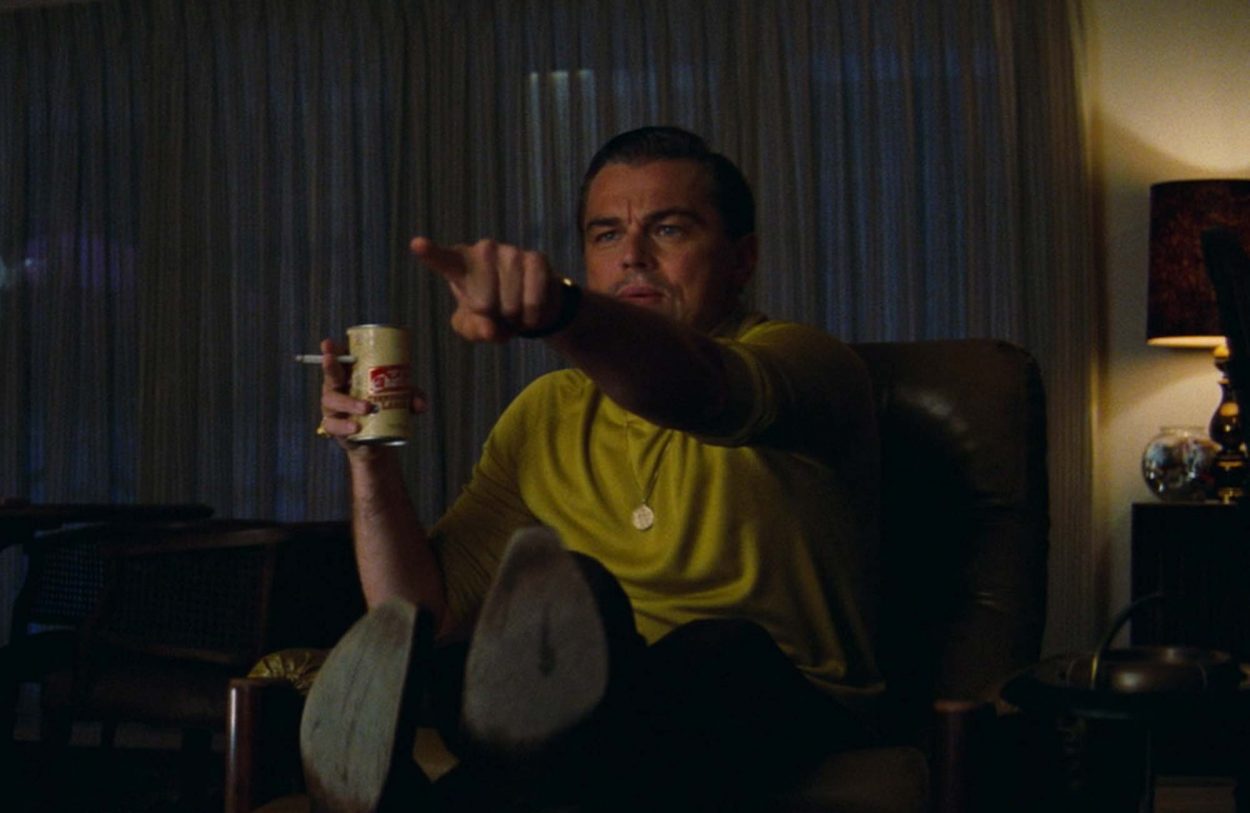 Before
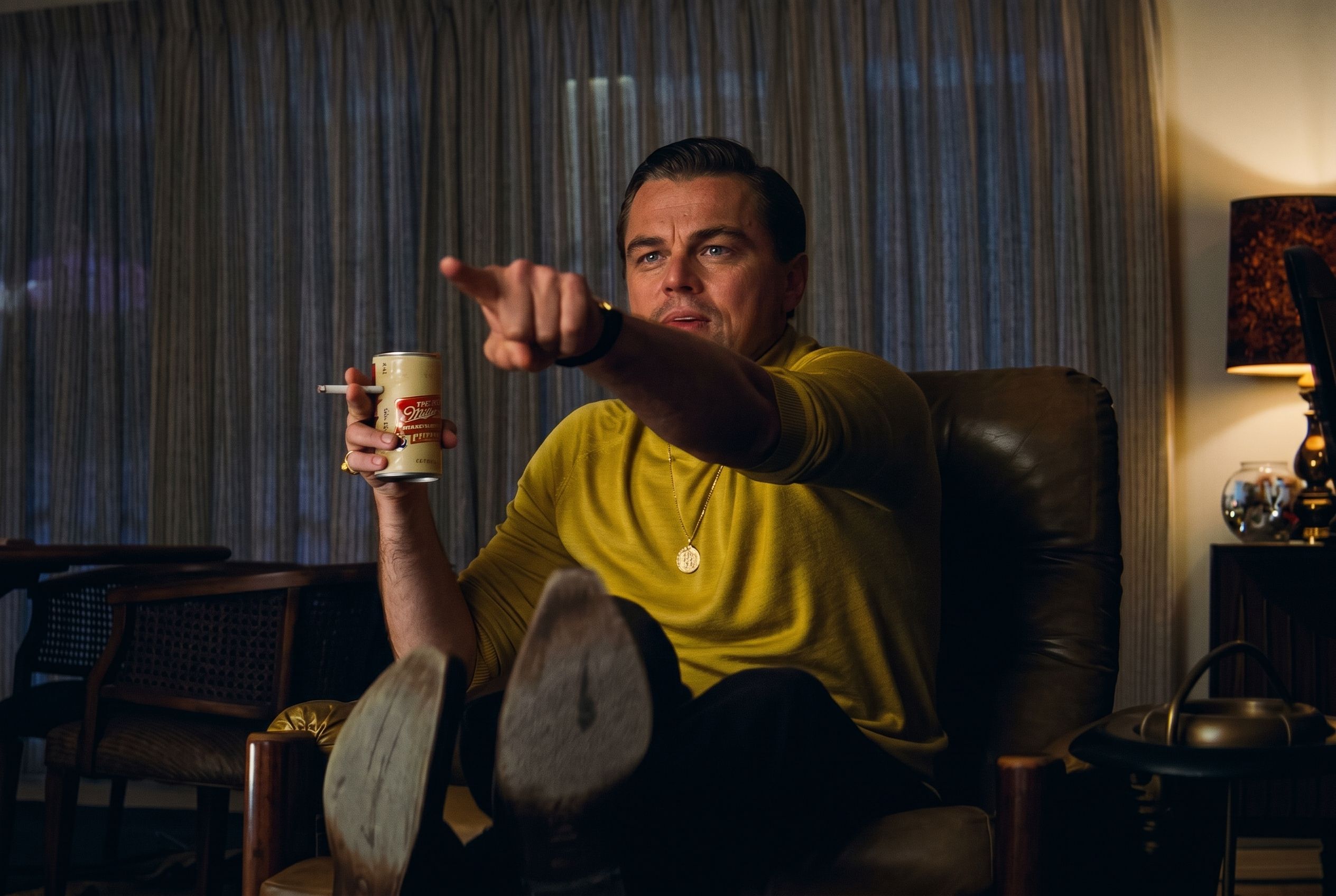 After
After
Prompt: "Enhance in full HD the image and don't touch the face"
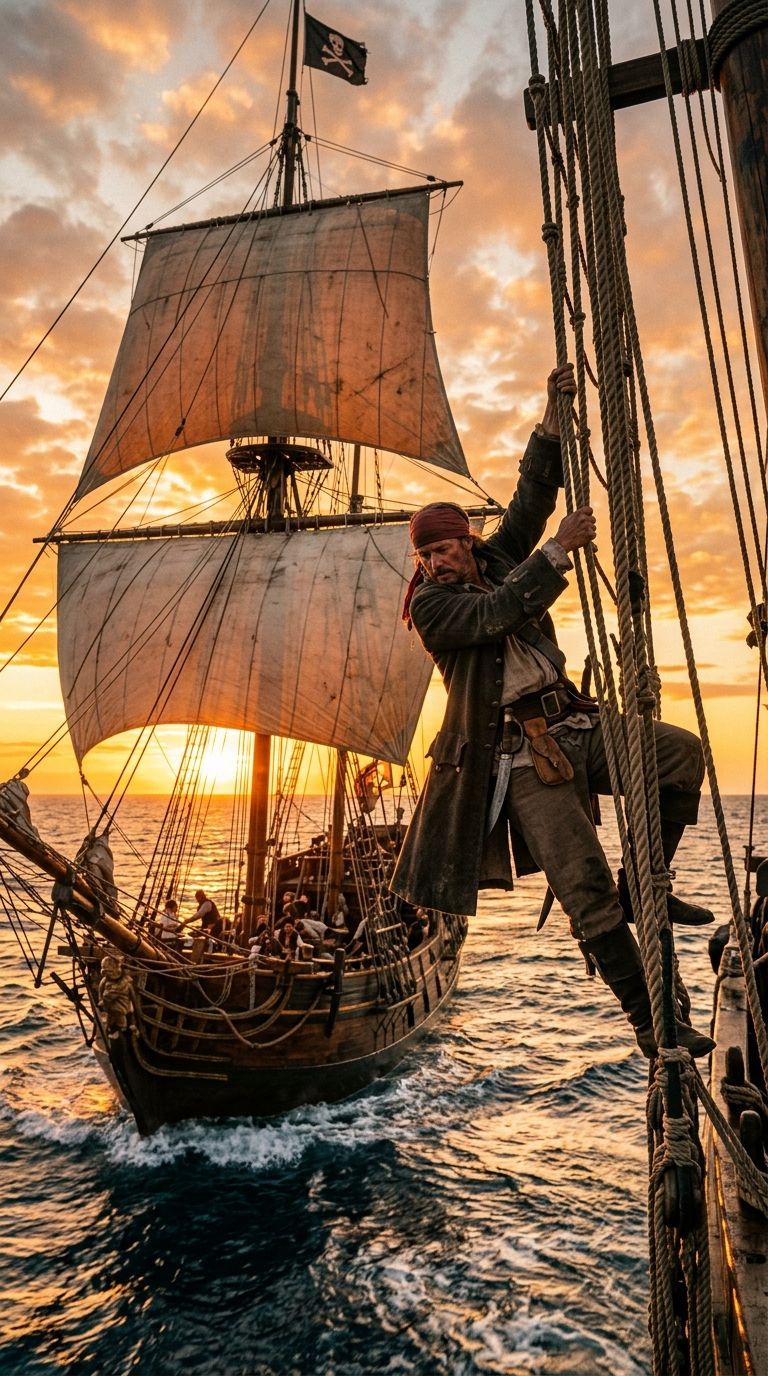
Prompt: "One pirate handing off the side of the roping of a sail on a pirate boat sailing in the sunset. Realistic."
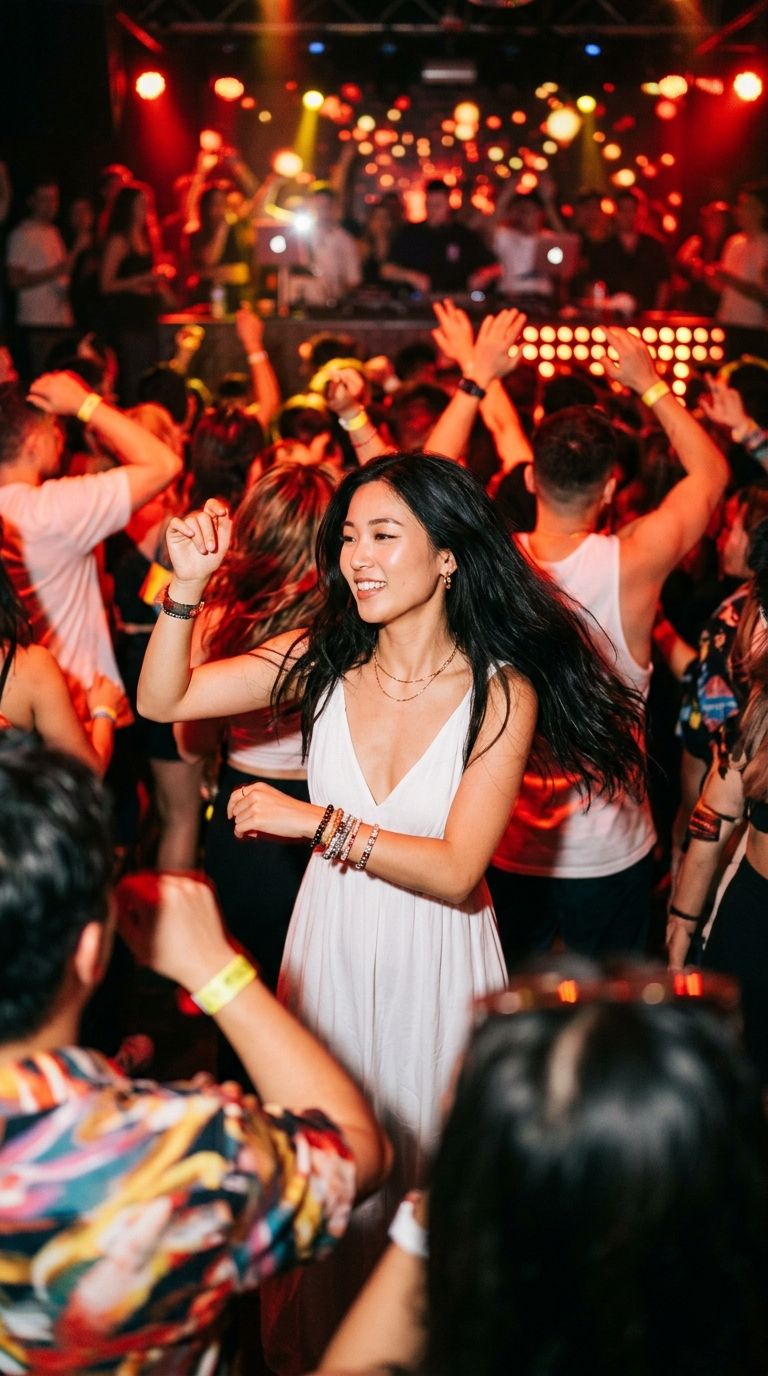
Prompt: "A cinematic nightclub photo with intense red and yellow lighting, crowded dance floor, and heavy bokeh blur throughout the scene. In the exact center of the crowd, one Asian girl with long black hair wearing a white dress is perfectly sharp and in focus while everyone else is motion blurred. We can only see her from waist up with a slight v‑neck dress. She's dancing confidently, wearing stylish accessories like bracelets and earrings that catch the light. Vibrant nightlife atmosphere, shallow depth of field, dreamy glow, energetic club vibes, professional photography, high contrast lighting, realistic skin tones, dynamic motion blur, candid moment."
When do you want Replicate?
Replicate is the easiest way to try lots of AI models without owning a GPU or installing anything. It hosts thousands of open and hosted models, and you run them through a simple web form or a single API call. Want to test the Flux family for crisp, modern image generation? Or compare a few different styles before committing? Replicate lets you poke at all of them from your browser.
This is the “I just want to experiment” path. No environment to set up, no command line, just pick a model, fill in the prompt, and hit run. You pay per use, so casual tinkering stays cheap.
When do you want a LoRA?
A LoRA (short for Low-Rank Adaptation) is a small add-on file that teaches a base image model one specific thing: a style, a character, or a subject. It does this without retraining the whole model, so the files are small and easy to share. You can grab them from community hubs, load them in tools like ComfyUI or run them through Replicate, and even stack a few together to mix looks.
Reach for a LoRA when you want the same look every time: your brand’s illustration style, a recurring mascot, a particular vibe across a whole set of images. I go deeper on how they work and where to find them in understanding LoRAs.
Where should you start?
If you are brand new, open the Gemini app and try a quick Nano Banana edit on a photo you already have. It is the fastest way to feel the magic. When you want to explore more styles, head to Replicate and run a couple of models side by side. And once you find yourself wanting the exact same look again and again, that is your cue to try a LoRA.
No GPU, no installs, no jargon required. Just pick the path that matches what you want and start playing.