Getting started with Ghostwriter, step by step
A plain walkthrough of installing and using the free Ghostwriter tool: where the files go, how to ask for a rewrite, what the clean-up step does, and how much of a difference it actually made in testing.
The first three parts of this series were about the problem: AI writing has a tell, a quick surface fix does not remove it, and here is how to spot it yourself. This one is the practical bit. How do you actually run Ghostwriter.
Short version: it is free, it takes about two minutes to set up, and once it is in you use it by asking in plain English. You do not write code.
What it is, in one line
Ghostwriter is a “skill”, which is a fancy word for a folder of instructions you hand to an AI assistant. Claude and GitHub Copilot both read tools from a shared folder on your computer. Drop Ghostwriter’s folder in there and the assistant gains the ability to write without the usual AI tells.
That is the whole install. Copy one folder.
Setting it up
The exact steps live on the GitHub page, and they come down to downloading the folder and putting it where your assistant looks for skills. It is free under an open licence, and there is nothing to sign up for and no account to make.
If the word “folder” and “download” is as technical as you get, you are fine. That is the ceiling. Everything past setup is done in plain words.
Using it
Once it is installed, you do not invoke anything special. You write the way you already talk to the assistant, and you mention what you want. Something like: “draft a LinkedIn post announcing our new opening hours, and make sure it does not read like AI wrote it.” That is it. The tool activates on its own and applies its rules from the first sentence.
When it finishes, it runs a small clean-up script over the result. That script is the one automated part, and it handles the invisible characters no human could catch by eye. You do not run it yourself, it runs as the final step.
Does it make a real difference?
I measured it instead of trusting a vibe. Running three different Claude models on three writing tasks, with and without the skill, the tool passed 97% of the quality checks against 72% for the same models given a plain “do not sound like AI” instruction.
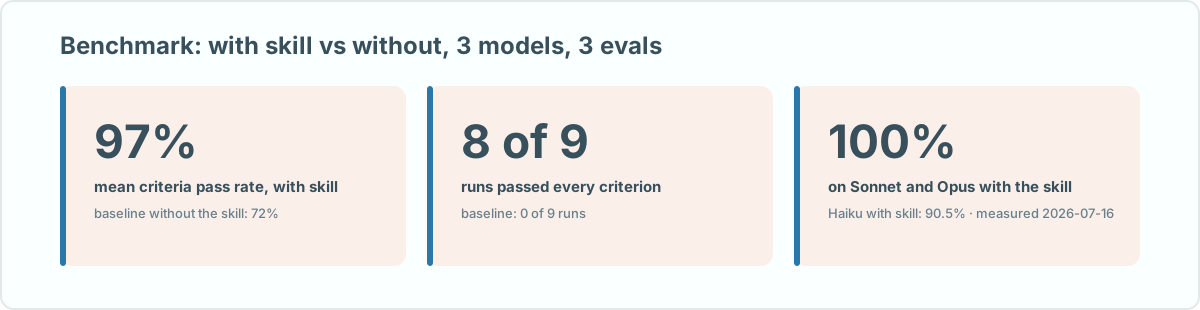
More telling: 8 of the 9 skill runs passed every single check, while the plain-instruction runs passed all checks exactly zero times out of nine. Telling a model “don’t sound like AI” helps a little. Giving it the actual rules helps a lot.
One thing it will not do is write your ideas for you. It removes the machine fingerprint and gives you a natural voice. What you say in that voice is still yours to figure out. Grab it on GitHub and point it at the next thing you were going to post.